Put two or more images side by side in one row. Add your pictures, choose how they line up, and download one wide JPG, PNG or WebP. It’s the quickest way to make a comparison strip, a before-and-after, a product line-up or a banner, and it accepts almost any image format.
- 1Upload
- 2Edit
- 3Download
Drag & drop your images here
or
Your images are processed privately in your browser.
Crop image
- Always side by side No layout menus; images run left to right in your order.
- Any common format JPG, PNG, WebP, HEIC, AVIF, GIF and BMP, even mixed.
- Private and free Merged in your browser, with no sign-up and no watermark.
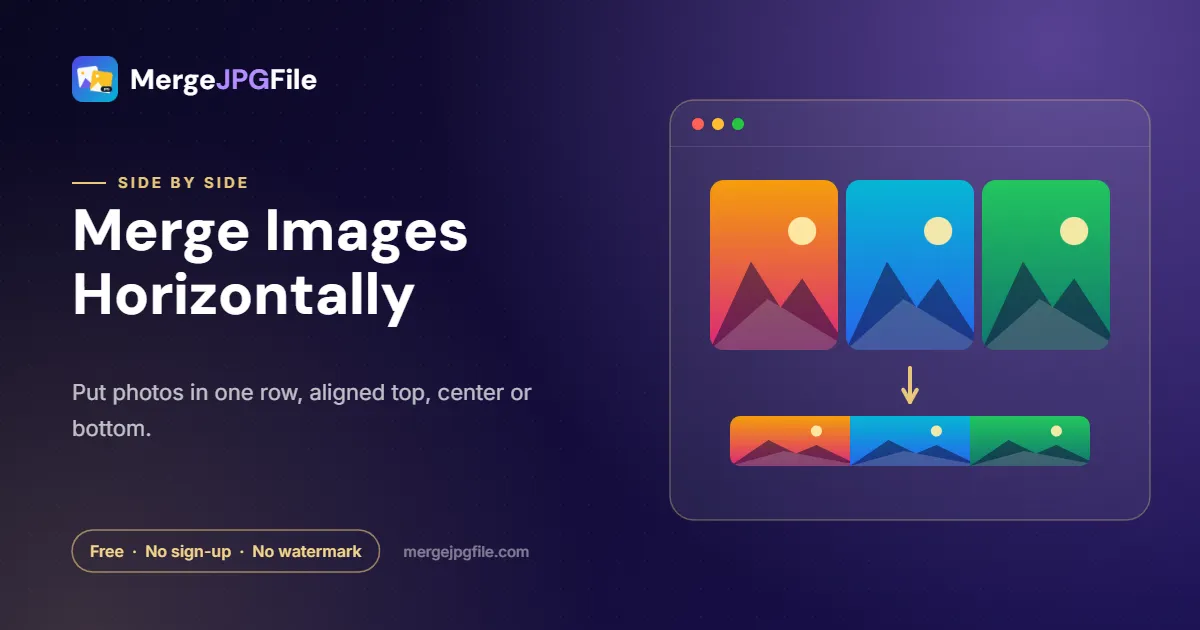
How to Merge Images Horizontally
- Add your images. Drop them on the upload box or tap Browse Files. Up to 20 images, 15 MB each.
- Set the left-to-right order. Drag the cards; the first card ends up on the far left.
- Line them up. Choose Top, Center or Bottom alignment and tick Make all images the same height for clean edges.
- Merge and download. Pick JPG, PNG or WebP, click Merge Side by Side, then Download Image.
How Alignment and Equal Height Work
Images in a row almost never have the same height. Something has to give, and you get to choose what:
| Option | What happens | Best for |
|---|---|---|
| Top | Top edges line up; shorter images leave space below | Screenshots and documents |
| Center | Images are centred vertically in the row | Photos and product shots |
| Bottom | Bottom edges line up | Objects standing on a surface, people photos |
| Same height ticked | Every image is resized to one height, no gaps | Comparisons and seamless strips |
Any empty space is filled with your background colour, or left transparent if you tick Transparent and save as PNG or WebP.
How Wide Will the Result Be?
Side-by-side images get wide fast. Three phone photos, each 3,000 px wide, make a strip about 9,000 px across. That’s fine for printing but heavy for a website or WhatsApp. The live preview shows the exact output size, for example “Output: 2,420 × 900 px”, so you always know what you’ll get. To keep it manageable:
- Set a max width under More options. The whole image is scaled down proportionally.
- Use portrait photos where possible. They make a more balanced row than landscape ones.
- Stick to 2–5 images for a strip people will view on a phone.
More Options
- Spacing from 0 to 200 px. Use 0 for a seamless panorama-style strip.
- Crop, rotate, replace or remove any image before merging.
- Border, rounded corners and padding under More options.
- Quality from 10% to 100% for JPG and WebP (92% to start).
When Side by Side Works Best
Before-and-after comparisons
Renovations, photo edits, cleaning, fitness progress. Same height plus center alignment keeps the comparison fair.
Product variants
Colours, sizes or angles in one row for a store listing or a catalogue page.
Design options
Show two or three logo or layout ideas next to each other so a client can pick one.
Banners and headers
Join photos into a wide strip for a website header, a YouTube banner or a Facebook cover.
App screens
Line up phone screenshots for a portfolio, a pitch deck or an app store listing.
Making a Before-and-After Image, Step by Step
- Add the “before” photo first, then the “after” photo. The first one goes on the left, which is where most people look first.
- Tick Make all images the same height so both sides are the same size.
- Set alignment to Center.
- Add 10–16 px of spacing in white or black to separate the two halves clearly.
- If the photos were taken from slightly different distances, crop the wider one so the subject appears at the same size on both sides.
- Download as JPG for social media or PNG if the image contains text labels.
Tips for Great Side-by-Side Images
- Keep the subject at the same height in every photo. The eye compares along a horizontal line, so misaligned subjects look messy.
- Avoid mixing very bright and very dark photos in one strip; one will dominate.
- Use spacing 0 for a panorama feel, and a gap for a “comparison” feel.
- Check on a phone. If the strip looks tiny, use fewer images or switch to a vertical stack.
Horizontal, Vertical or Two Photos?
This tool always puts images in a row. If you want them stacked, use Merge Images Vertically. If you only have two photos and want a Swap button, try Merge Two Photos. And if you’d like a grid as well, Merge JPG File offers every layout in one tool.
Is This the Same as a Panorama?
Not quite. A panorama app finds the overlapping parts of photos and blends them into one continuous scene. This tool places images next to each other edge to edge, exactly as they are. With spacing set to 0 and “same height” ticked, the result can look panorama-like, but you’ll see where one photo ends and the next begins. For comparisons, product rows and banners, that clear edge is exactly what you want.
Frequently Asked Questions
How do I combine images horizontally?
Add your images, drag them into left-to-right order, choose an alignment, then click Merge Side by Side and download.
Can I merge images of different sizes side by side?
Yes. Tick “Make all images the same height” to resize them to one height, or use alignment and keep their original sizes.
How many images can I put in one row?
Up to 20 images per merge.
Does it keep transparency?
Yes, when you tick Transparent and save as PNG or WebP.
Can I mix JPG, PNG and HEIC files?
Yes. The tool accepts JPG, PNG, WebP, HEIC, AVIF, GIF and BMP in the same merge.
The image is too wide. What can I do?
Set a max width under More options, or use fewer or portrait-shaped images.
Can I add a gap between the images?
Yes. Set Spacing anywhere from 0 to 200 px and choose a background colour for the gap.
Can I make a seamless panorama?
The tool joins images edge to edge without blending overlaps. Set spacing to 0 and tick “same height” for the closest result.
More Merge Tools
Need a different job done? Each of these runs in your browser too, free and without a watermark.
- Merge JPG File – merge JPG, PNG, WebP and HEIC images into one.
- Merge JPEG Files – join JPEG photos into one JPEG with quality control.
- Merge PNG Files – combine PNGs and keep transparency.
- Merge WebP Files – merge WebP images into WebP, PNG or JPG.
- Merge HEIC Files – combine iPhone HEIC photos into one image.
- Merge Images Vertically – stack images from top to bottom.
- Merge Two Photos – put exactly two photos together.
- Merge Screenshots – turn screenshots into one long image.
- Merge JPG to PDF – combine JPG images into one multi-page PDF.
Line Up Your Images Now
Put your pictures side by side in one clean, wide image.