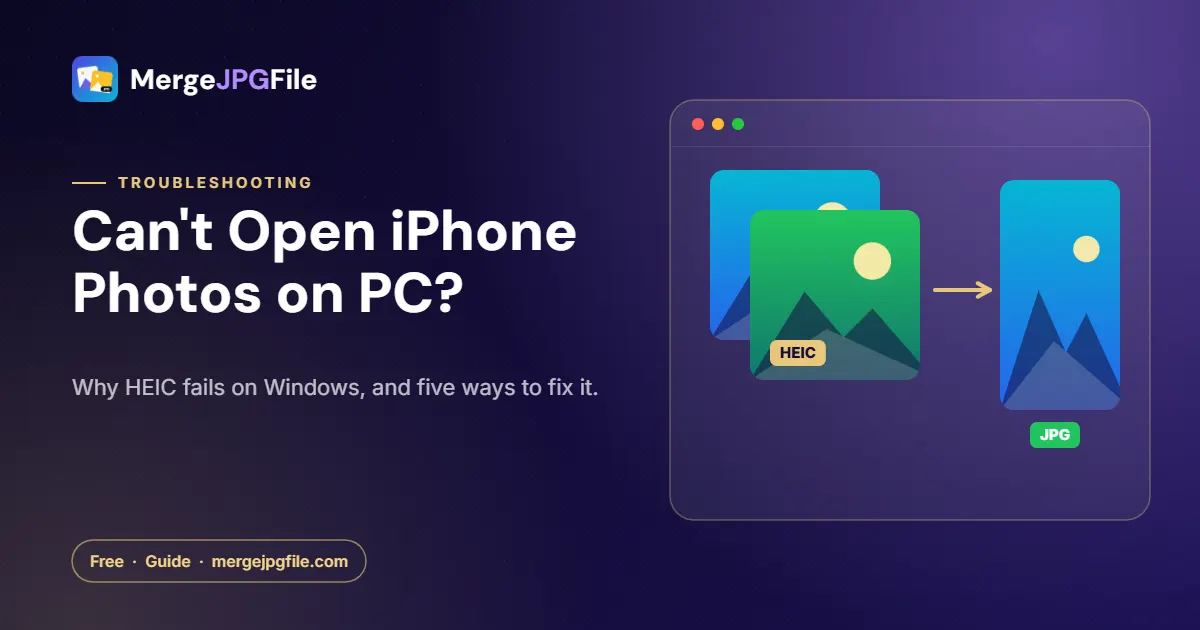
You copy photos from your iPhone to your laptop, double-click one, and get a blank icon, an error, or a pop-up asking you to buy something. It’s one of the most common tech frustrations, and it isn’t your fault. If you can’t open iPhone photos on your PC, the reason is almost always the file format: iPhones save photos as HEIC, and Windows doesn’t always know how to read it. This guide explains why, then gives five fixes, from a two-minute setting change to opening the files without installing anything.
If you need the photos as one image right now, you can merge iPhone HEIC photos into a single JPG in your browser, even on a PC that can’t display HEIC at all.
Why iPhone Photos Won’t Open on Windows
Since iOS 11 in 2017, iPhones have saved photos in HEIC format by default. HEIC files are about half the size of comparable JPEGs, which saves a lot of storage. The catch is how they’re compressed: with HEVC (H.265), a video codec covered by patents and licensing fees. Windows doesn’t always ship with a licensed HEVC decoder, so:
- File Explorer shows blank or generic thumbnails.
- The Photos app says it can’t open the file, or asks you to install HEVC Video Extensions.
- Older programs, websites and forms reject the files outright.
For a deeper look at the format itself, read HEIC vs HEIF explained.
Signs It’s a HEIC Problem
- The file name ends in .HEIC (turn on View › Show › File name extensions in File Explorer to check).
- JPG photos from the same phone open fine.
- The photo opens on a Mac or the iPhone itself, but not on Windows.
Fix 1: Update the Photos App
Microsoft has been adding native HEIC support to newer versions of the Windows 11 Photos app. Open the Microsoft Store, go to Library, and click Get updates. Then try opening the photo again. On many Windows 11 PCs this alone solves it.
Fix 2: Install the HEIF and HEVC Extensions
If updating doesn’t help, or you’re on Windows 10:
- In the Microsoft Store, install HEIF Image Extensions (free). It reads the HEIC container.
- Install HEVC Video Extensions as well. Despite the name, it’s needed to decode HEIC photos. It usually costs about $0.99, though some PCs already have the free “from Device Manufacturer” version; check before buying.
- Restart the Photos app and File Explorer (or sign out and back in).
Installing only the HEIF extension is a common mistake; on its own it often isn’t enough.
Fix 3: Make Your iPhone Send JPGs Automatically
This is the best long-term fix. On your iPhone, open Settings › Photos, scroll to Transfer to Mac or PC, and choose Automatic. Now, whenever you copy photos to a computer over a USB cable, they arrive as JPGs. Your iPhone keeps the smaller HEIC originals. Our step-by-step guide to transferring HEIC photos from iPhone to PC as JPG covers cable, iCloud and other methods.
Fix 4: Shoot in JPG Instead
If you don’t care about the storage savings, go to Settings › Camera › Formats and choose Most Compatible. New photos will be saved as JPG. Existing HEIC photos stay as they are, and files will take up more space on your phone and in iCloud.
Fix 5: Open or Merge Them in the Browser
Don’t want to install anything? Browser-based tools can read HEIC without any Windows codecs. Our HEIC merger takes one or many HEIC files and outputs JPG, PNG or WebP. You can merge two or more photos into a collage, or into a stacked image, and download the result as a JPG. (It needs at least two photos; for a single file, use one of the fixes above.) Photos are decoded in your browser wherever possible; only if that fails is a photo converted on our server as a fallback, and those temporary copies are deleted automatically within an hour. The full Windows walkthrough is in merging HEIC files on Windows without converting.
Which Fix Should You Use?
| Fix | Cost | Time | Best for |
|---|---|---|---|
| Update Photos app | Free | 2 minutes | Windows 11 users, first thing to try |
| HEIF + HEVC extensions | Free to about $0.99 | 5 minutes | Viewing HEIC regularly on Windows |
| iPhone “Automatic” transfer | Free | 1 minute | Everyone who copies photos by cable |
| Shoot in “Most Compatible” | Free (uses more storage) | 1 minute | People who share with many PCs |
| Browser tool | Free | Instant | Work, school or shared PCs where you can’t install apps |
Other Reasons Photos Won’t Open
If the files aren’t HEIC, or none of the fixes work, check these:
- Incomplete transfer: photos stored only in iCloud (“Optimize iPhone Storage”) may copy as tiny placeholders. Download originals from iCloud.com instead.
- Videos, not photos: .MOV files are videos and also use HEVC, needing the same extension.
- Live Photos: these come as a still image plus a short .MOV; the still should open once HEIC works.
- Corrupted copies: unplugging the cable mid-transfer can break files. Copy again.
What Not to Do
- Don’t rename .HEIC to .JPG. It doesn’t convert anything, and the file still won’t open.
- Don’t install random “free HEIC viewer” programs from unknown sites; stick to the Microsoft Store or trusted tools.
- Don’t delete originals from your iPhone until you’ve confirmed the copies open on your PC.
Frequently Asked Questions
Why can’t I open iPhone photos on my PC?
iPhones save photos as HEIC, which uses the HEVC codec. Windows often lacks the decoder, so the files won’t open without an update or extensions.
How do I open HEIC files on Windows for free?
Update the Photos app, install the free HEIF Image Extensions, and check for the free HEVC extension from your device manufacturer. A browser tool also works without installing anything.
How do I make my iPhone transfer photos as JPG?
Go to Settings, Photos, Transfer to Mac or PC and choose Automatic.
Does changing to Most Compatible affect old photos?
No. Only new photos are saved as JPG. Existing HEIC photos stay as they are.
Can I just rename HEIC to JPG?
No. Renaming does not change the format, so the file still won’t open.
Get Your Photos Opening Again
Start by updating Photos, add the HEIF and HEVC extensions if needed, and switch your iPhone’s transfer setting to Automatic so the problem doesn’t come back. When you need photos as one image right away, our free HEIC photo merger turns them into a JPG anyone can open.